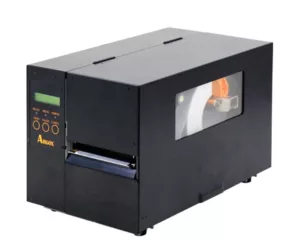
Installing the Argox printer driver typically utilizes the Seagull Scientific Driver Wizard, which is the official and most reliable method for Windows systems.
Here is a step-by-step guide to installing the driver correctly.
Phase 1: Preparation (Crucial Step)
- Keep the printer turned off but connect it to your computer using the USB or parallel-to-usb cable.
- Ensure the power cable is firmly connected to both the printer and a wall socket.
- Go to the official Argox Website and on this link https://www.argox.com/download/drivers/?type=Drivers
- Download the official driver package “Argox Windows Printer Driver Argox_11.10.0”
Phase 2: Running the Driver Installer
- Launch the downloaded installer file (Argox_11.10.0.exe).
- A Windows prompt will appear. Select “I accept the terms in the license agreement” and click Next.
- Choose the directory where you want to unpack the installation files (the default path is usually
C:\Seagull) and click Next. - Click Finish to extract the files.
Phase 3: The Seagull Driver Wizard
Once the files are extracted, the actual Seagull Driver Wizard will automatically launch.
⚠️ Important: If Windows automatically opens its own Add Hardware Wizard or Add Printer Wizard when you plug in the printer, Cancel or close it immediately. The generic Windows wizard frequently misassigns communication ports or mishandles emulation protocols for thermal printers. Always use the Seagull Wizard instead.
- On the wizard’s main screen, select Install printer drivers and click Next.
- Turn on your Argox printer now. The wizard handles the port assignment based on your connection type:
- If using a standard USB connection (Plug and Play): The wizard should automatically detect your specific printer model and its connected USB port. Select it and click Next.
- If using an older interface (Parallel/Serial) or a Network port: Select “Other”, click Next, manually choose your precise Argox model and language emulation (e.g., PPLA, PPLB, or PPLZ), and assign the correct communication port (e.g.,
LPT1orCOM1). Click Next.
- Specify Printer Name: You can leave the default name or rename it (e.g., “Warehouse Argox OS-214plus”).
- Select “Do not share this printer” (unless you intend to share it over a local network right away) and click Next.
- Review the summary screen showing your model and chosen port. If everything is correct, click Finish.
Phase 4: Finalizing Installation
- The wizard will begin copying the internal system files and printer profiles to your computer.
- Once complete, a success message will appear. Click Close.
Verification
To verify the installation was successful: Go to Control Panel > Devices and Printers (or Settings > Bluetooth & devices > Printers & scanners). Your Argox printer should now appear clearly in the list. Right-click the printer icon, select Printer properties, and click Print Test Page to verify that communication is running successfully.